How to find device serial number
This guide will help you to find the serial number and the preferred host address for your DEIF devices.
The first requirement is to find the preferred host address for access to the web interface for the device. There are two ways of finding the address: One through the device and one through PICUS software.
Requirements
Ethernet port: Most PCs have a built-in RJ45 Ethernet port.
Cable: A standard Cat5e or Cat6 Ethernet cable.
Software: Configuration and monitoring software, PICUS.
Browser: Preferably Google Chrome or Microsoft Edge browser.
Preferred host address through device HMI
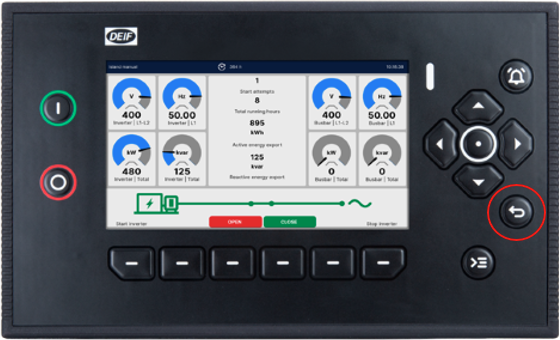
1. Open the selection menu by pressing the button with the arrow.
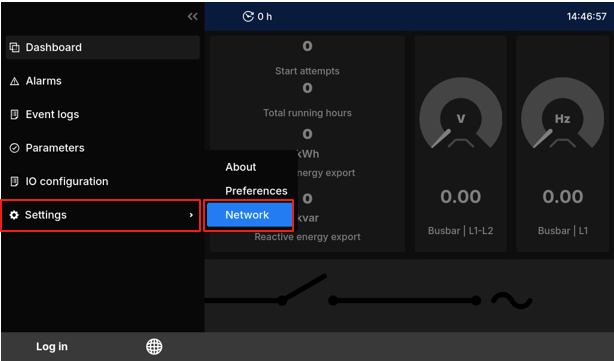
2. Find the section “Settings” and select “Network”.
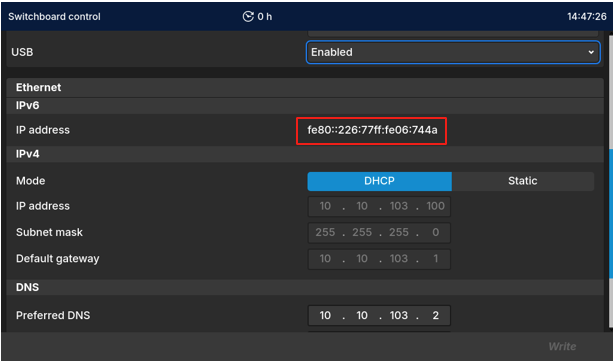
3. Browse down to the “Ethernet IPv6” and find the IP address.
They follow the format “fe80::226::77ff:fe06:744a”.
Here, you will only need the last six characters. Example “06744a”.
4. Use the button with the arrow. Go to “Settings” and select “About”.
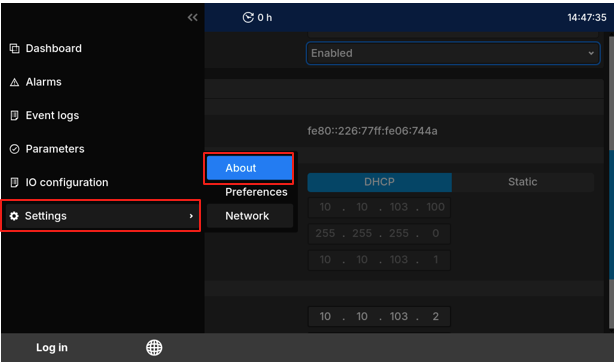
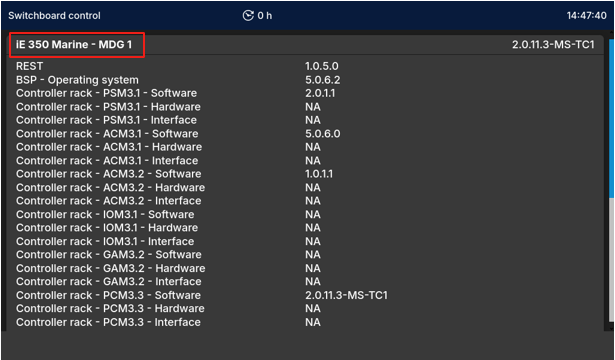
5. Here, you will find device name in the top left corner of the screen.
They follow the format: “iE350 Marine - MDG 1”.
Here, you will only need the device initials. Example “iE350”.
6. Now, you need to combine the previously found information.
- Type the device initials.
- Add the address from the IPv6.
- Add a dash between them. It should look like this: iE350-06744a
- Add “.local” to the text string. Then you have the preferred host address for the device that you can paste in your browser: iE350-06744a.local
Preferred host address through PICUS software
1. Establish a connection between the device and a PC
Connect the Ethernet cable to the DEIF device and connect it to your PC.
Launch PICUS to check if the software can find the DEIF device.
Establish a connection by pressing “Connect” on the device and log in with your device login information.
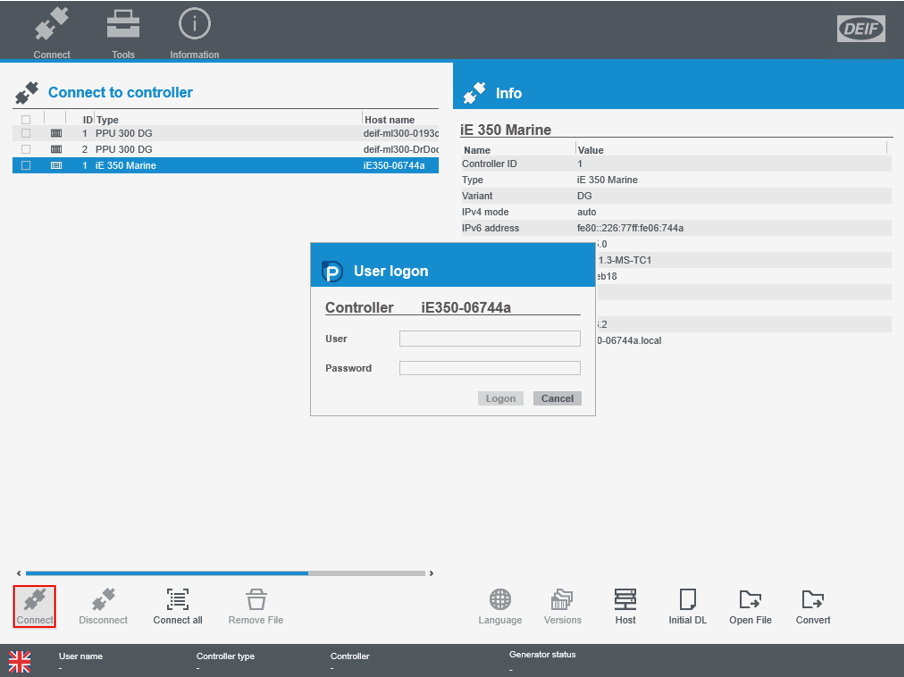
2. Preferred host address for access web interface
To find the preferred host address, open the following menu.
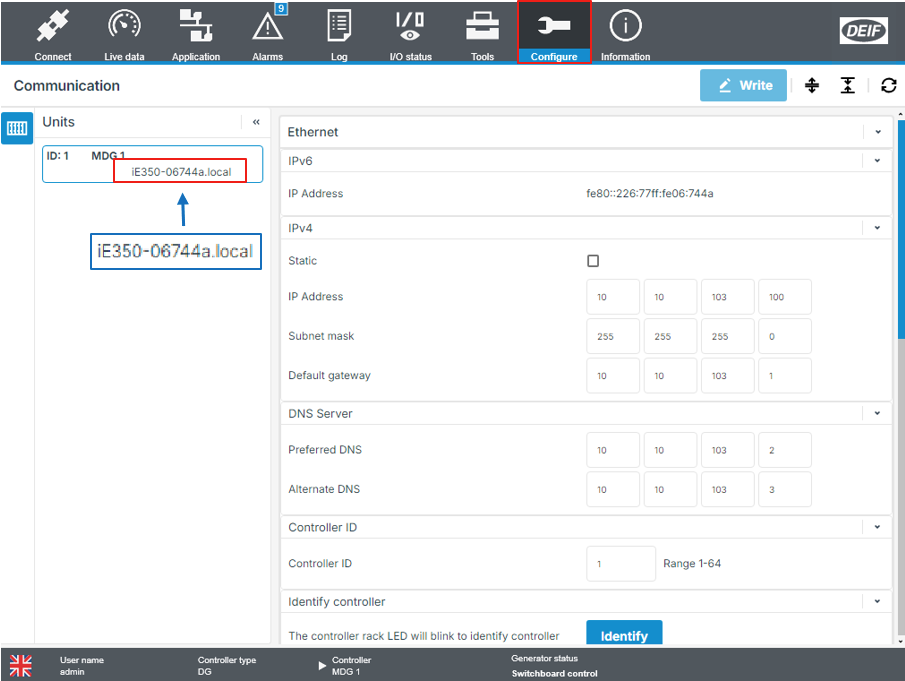
Hover over the “Configure” tab and click on “Communication”.
The preferred host address is displayed at the top left of the page. Look for the area “Units”. Here, the device name and ID will be present with the preferred host address underneath. Copy this address and paste into your browser.
Access the web interface for device
If not connected to the DEIF device, insert an Ethernet cable into the device and connect it to your PC.
Paste the host address into the address bar and press enter. (Some browsers might see the link as a security threat. Just continue. The address is safe).
Log in to the DEIF device in the top right corner of the page find the “Log in” button, and log in with your device login information.
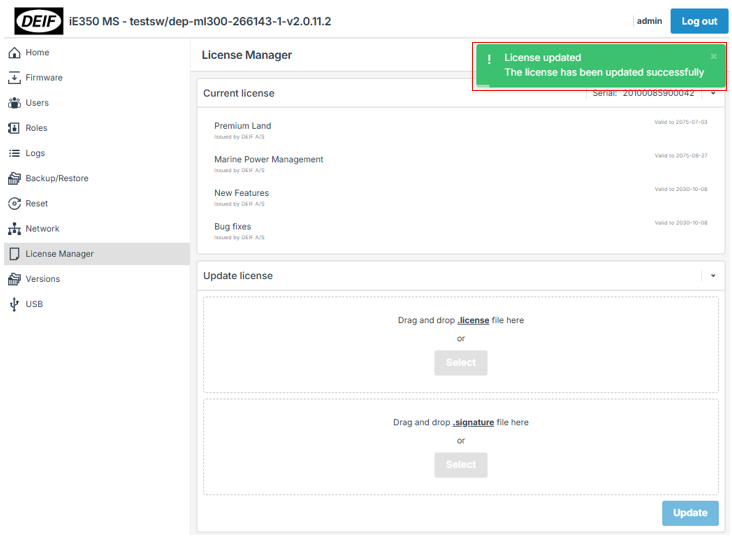
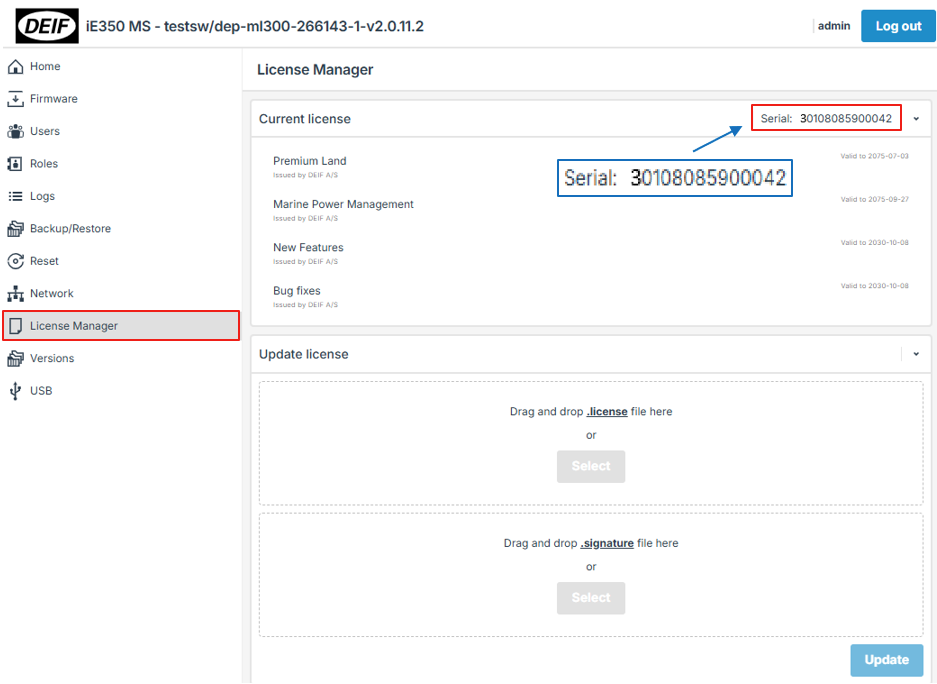
Once logged in, click on the area “License Manager” on the right side of the page. Here, you will find the serial number for the device. It consists of 14 characters.
Update device licenses
For updates to the device license manager, the product serial number is required. Use this guide on how to find the serial numbers.
Requirements
Ethernet port: Most PCs have a built-in RJ45 Ethernet port.
Cable: A standard Cat5e or Cat6 Ethernet cable.
Browser: Preferably Google Chrome or Microsoft Edge browser.
Device: Device serial number (Guide for device serial number)
Email: For receiving license files.
Get new license
1. Once the serial number is found, order the change of the license either at myportal.deif.com or by contacting your local Customer Care representative. Once the order is placed, wait for response with the new license file.
2. Once the new license mail is received, download the license and unpack the folder.
The files should look like this:

Navigate to the license area
3. Insert an Ethernet cable into the device and connect it to your PC.
4. Launch the device web interface, log in with the device information and navigate to the license manager.
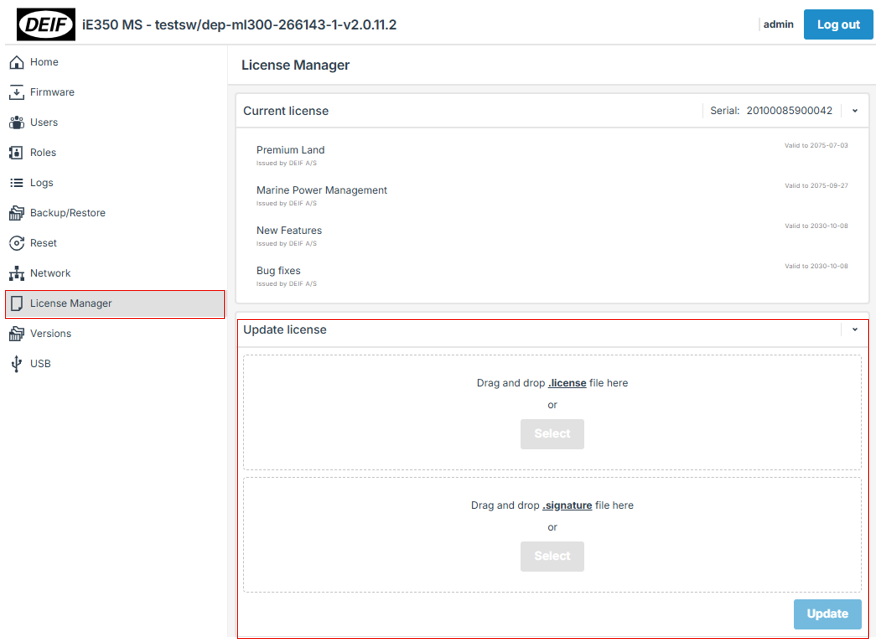
Update device with new license
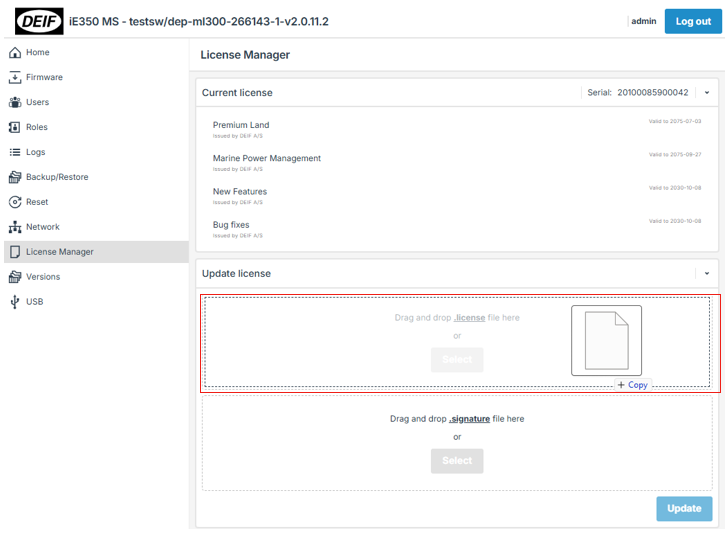
5. Drag the files from the folder into the license manager page on the device web interface and into the .license and .signature area.
6. Select the update button once both files are placed correctly and wait for confirmation that the update is complete.
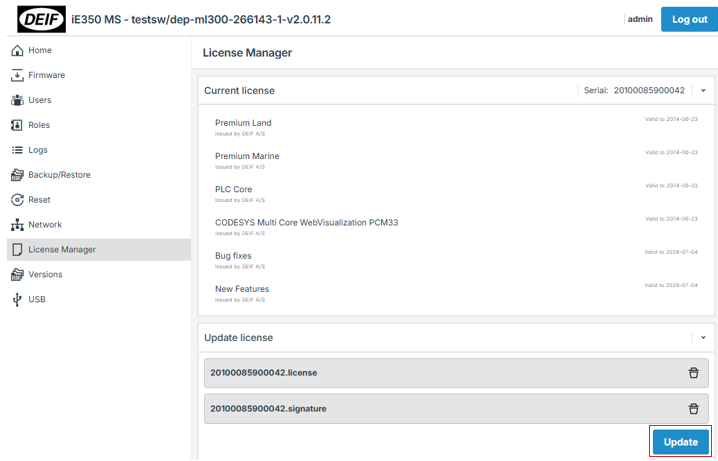
7. Once completed, you will get a green notification and the device is now updated with the new license.