
If you need to download new configurations to your Exware it's necessary to update the URL in the Exware.
Here's how:
Exware URL change.
First step is to make sure that SSH is enabled in the Exware device.
In your favorite browser go to https://Exware_IP_address/machine_config/#/services
Default login credentials are:
User: admin password: admin
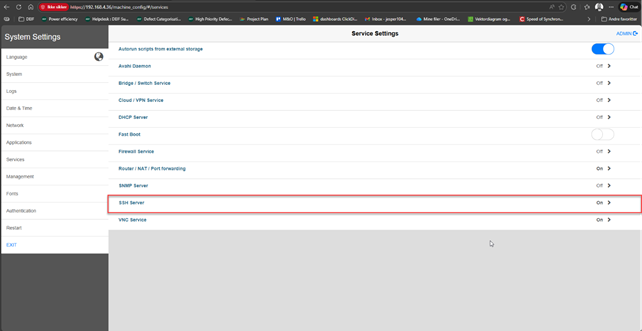
When you have made sure that SSH is enabled. Log into the device using a terminal like MobaXterm. Moba is i.m.o. preferable as it also has a build in SFTP browser. But the same can be achieved with Putty etc.
This guide assumes you are using MobaXterm.
In Moba, open a new SSH session and connect to your Exware.
Again, default login credentials are:
User: admin password: admin
Go to -> "/mnt/data/hmi/qthmi/deploy/
Here you will find a file called device.conf
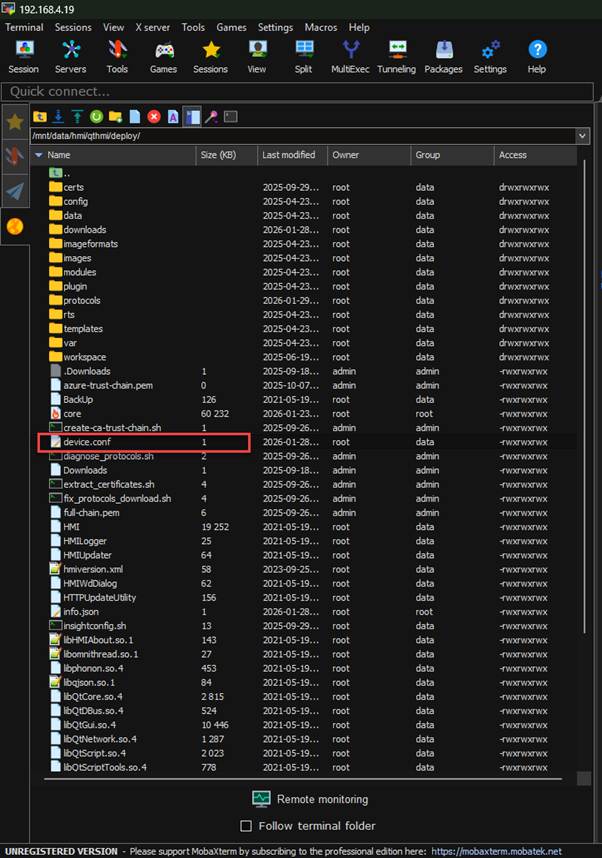
Right click and choose to edit with default text editor. Paste the following url to the very top of the file (only the top url is used):
https://deifinsightapiapp-v2.azurewebsites.net
Leave a space to the other urls, like this:
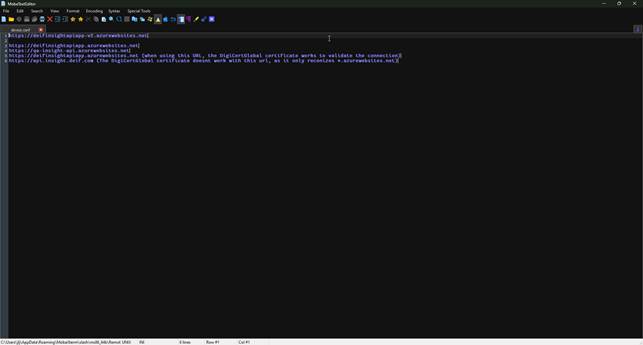
Save the file and make sure the changes are in effect.
Power cycle the device, or in the terminal write: sudo reboot
That’s it, it should now be possible to receive the configs from the cloud again.